Companion App
Optional desktop tool for drawing key faces, assigning host actions, and flashing firmware. Without it the deck is still a USB keyboard (F13–F24 by default, plus whatever you last saved on the device).
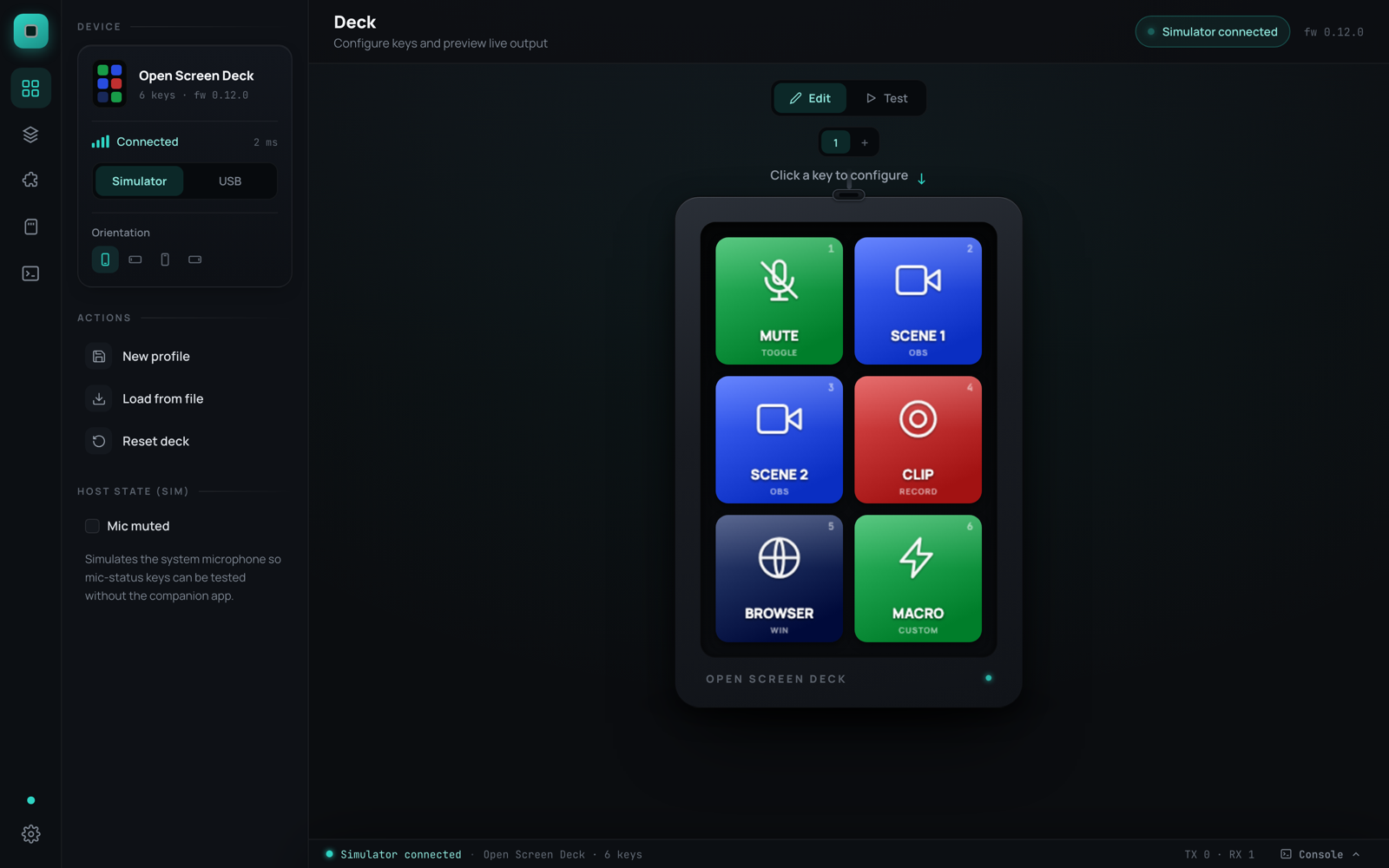
Binaries are on GitHub Releases. To run from source: app development (app/, Tauri 2).
How it works
key press ──USB CDC──▶ companion (Tauri/Rust) ──▶ action engine ──▶ macOS/Windows
key faces ◀──SET_KEY / SET_FACE / SET_IMAGE── state engine + plugins ◀── OS
On connect the companion sends MODE COMPANION; the firmware stops typing F13–F24 itself and just reports key events. A PING every 2 s is the heartbeat — if the app quits or the cable is pulled, the firmware falls back to plain HID within 6 s.
Configuring keys
Click any key and the inspector opens: label, color, icon, animation, and what the key does.
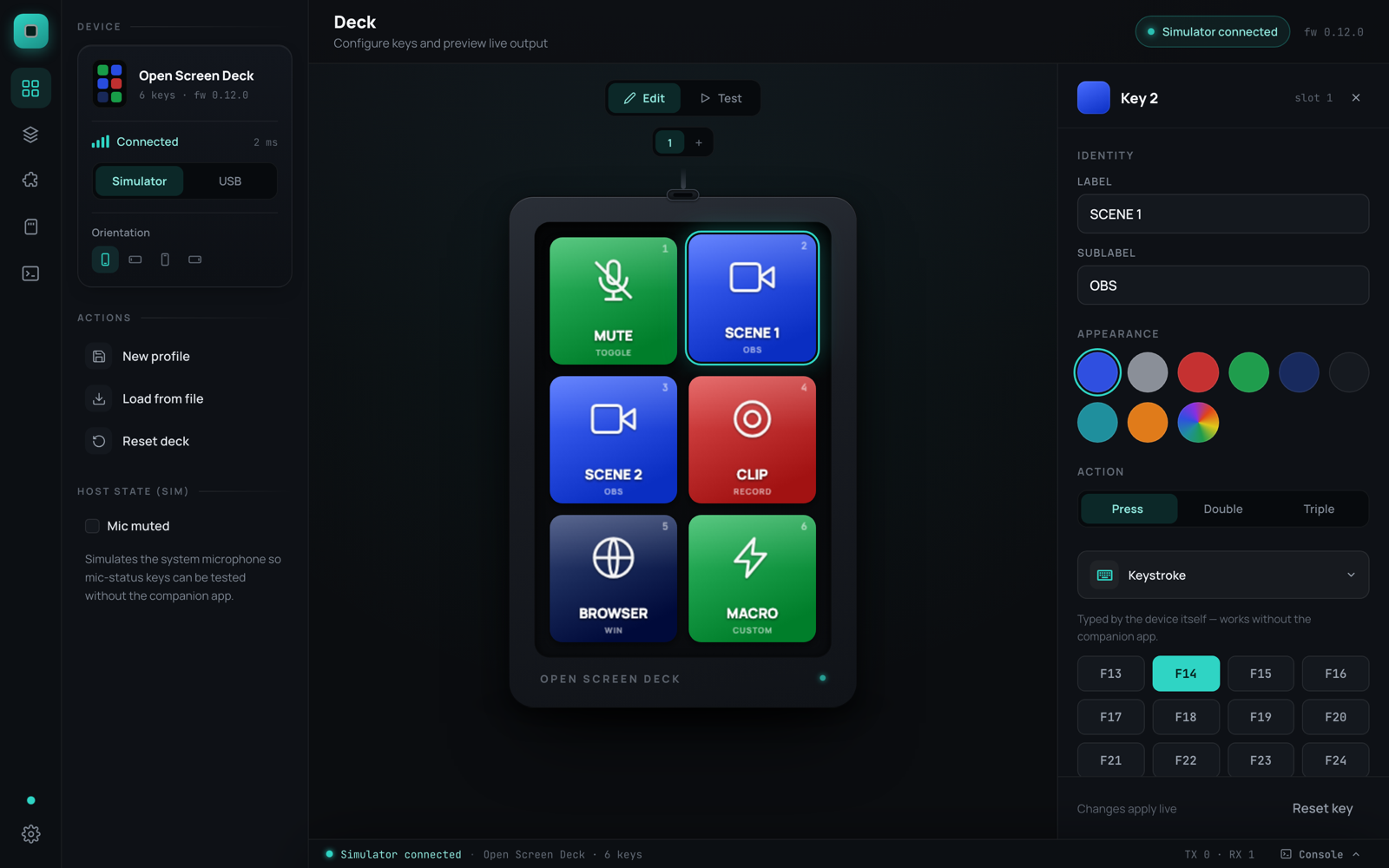
Choosing an action is a gallery of cards grouped by where they run (device vs host). Type to filter.
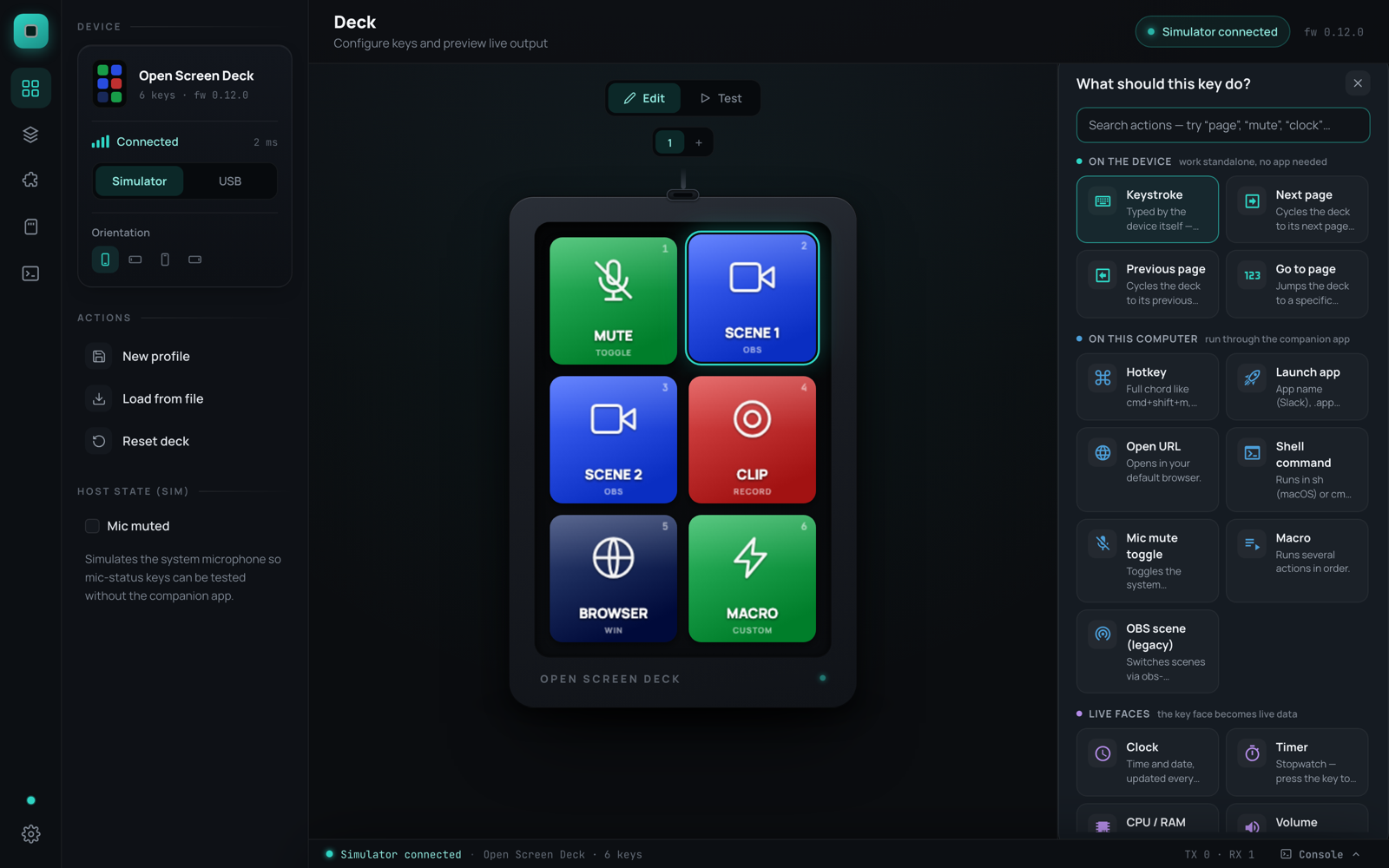
| Action | Runs on | Notes |
|---|---|---|
| Keystroke (F13–F24) | device | works without the companion |
| Next / Previous / Go to page | device | firmware-owned, works standalone |
Hotkey (cmd+shift+m) | host | needs macOS Accessibility permission |
| Launch app | host | picking an app also puts its logo on the key |
| Open URL | host | default browser |
| Shell command | host | sh -lc / cmd /C |
| Mic mute toggle | host | live two-state face (configurable colors/labels) |
| Live tiles | host | clock, timer, CPU/RAM, volume, now playing, OBS scene |
| Macro | host | steps with per-step delay |
| Plugin actions | host | from installed plugins |
Multi-tap
Every key can hold single, double, and triple press actions. The firmware is smart about latency: keys with only a single action fire instantly; keys with multi-tap bindings use a short tap window. Works on the device and on-screen.
Pages
Decks start with one page and grow to 8 pages × 6 keys = 48 slots. The page count lives on the device (NVS-persisted) and inside each profile, so applying a 3-page profile resizes the deck. Page-switch keys ride reserved HID codes, so they work standalone.
Key faces & media
- Images — drop a PNG/JPG on a key; crop interactively to 128×128. Transparent pixels adopt the key's background color and follow recolors.
- Icons — a searchable library of ~7,400 Material Design Icons.
- Animations — drop a GIF or video; frames upload to the deck's microSD and play on-device, even standalone.
- Live tiles and plugin faces stream as draw-only frames — no SD wear.
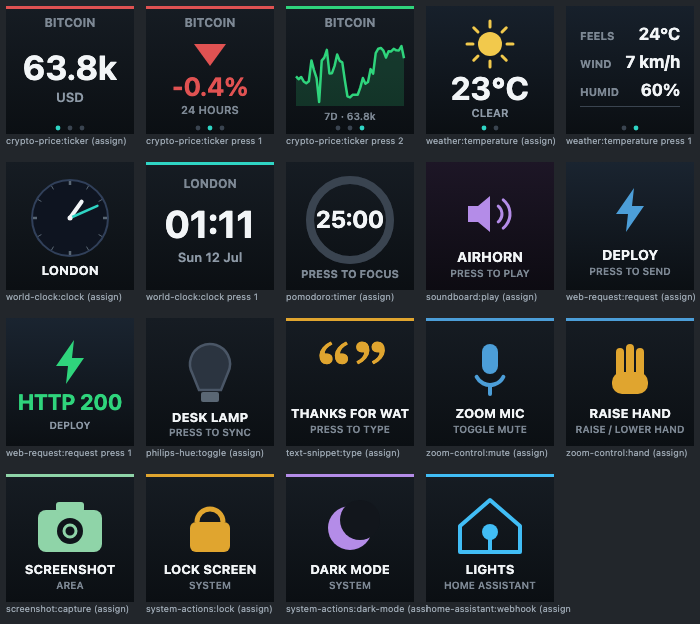
Plugins draw fully custom faces (tickers, clocks, progress rings) and own their keys' look:
Profiles
A profile is a saved deck layout — configs, actions, page count, and media. The active profile auto-saves as you edit. Profiles export as self-contained .osdprofile.json files (Share on any card); community layouts live in the repo's profiles/ folder. Starter templates (including a plugin showcase) are in the app:
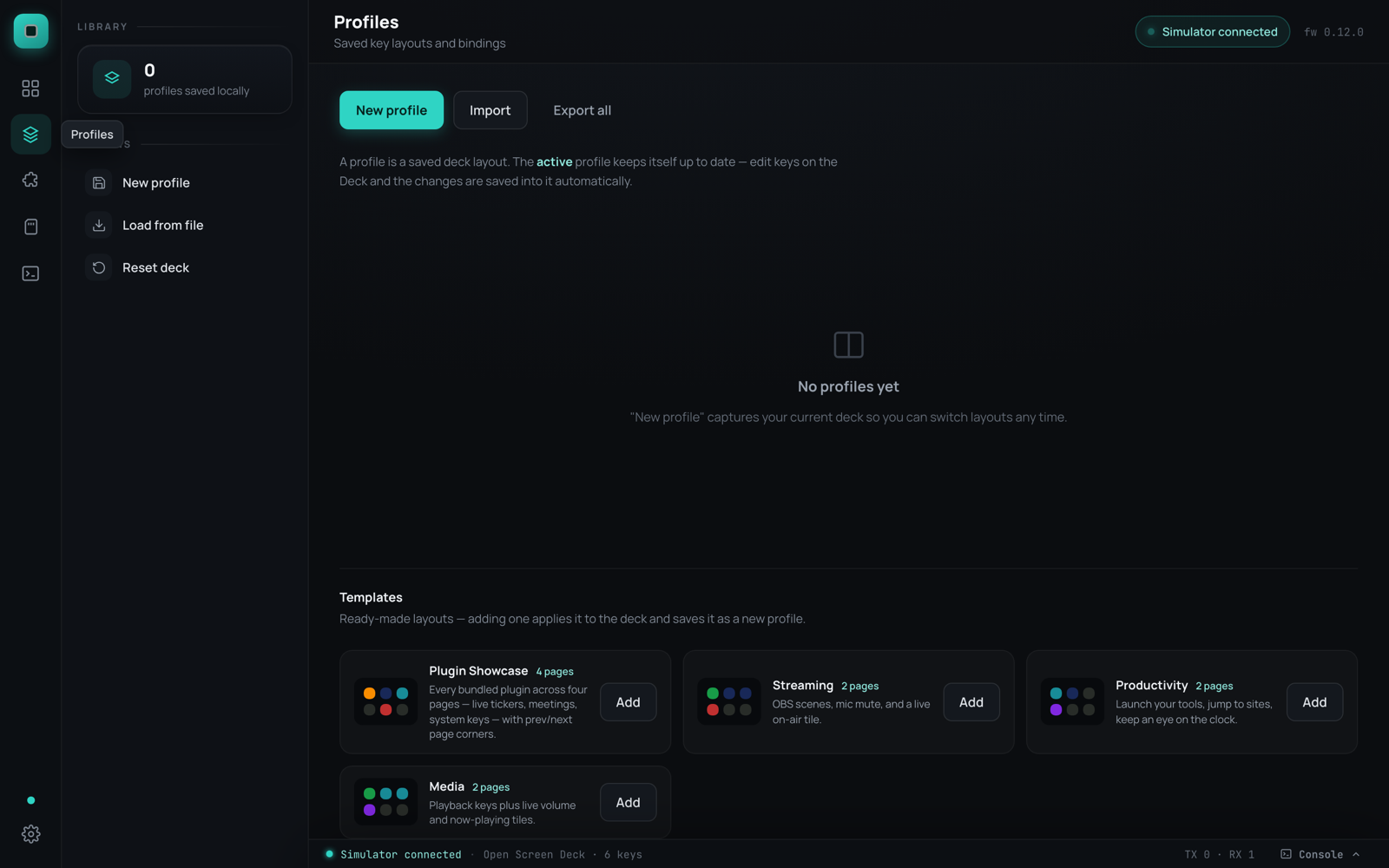
A profile can load when a given app comes to the front (e.g. OBS).
Editing niceties
- Drag & drop — drag one key onto another to swap them
- Copy/paste — Cmd+C / Cmd+V on a selected key
- Undo/redo — Cmd+Z / Shift+Cmd+Z, up to 50 steps
- Test mode — click keys in the UI to fire the real actions
Plugins
Plugins lists what's in plugins/registry.json. Install from there, open a plugin for its settings and changelog, and you'll be asked before an update applies.
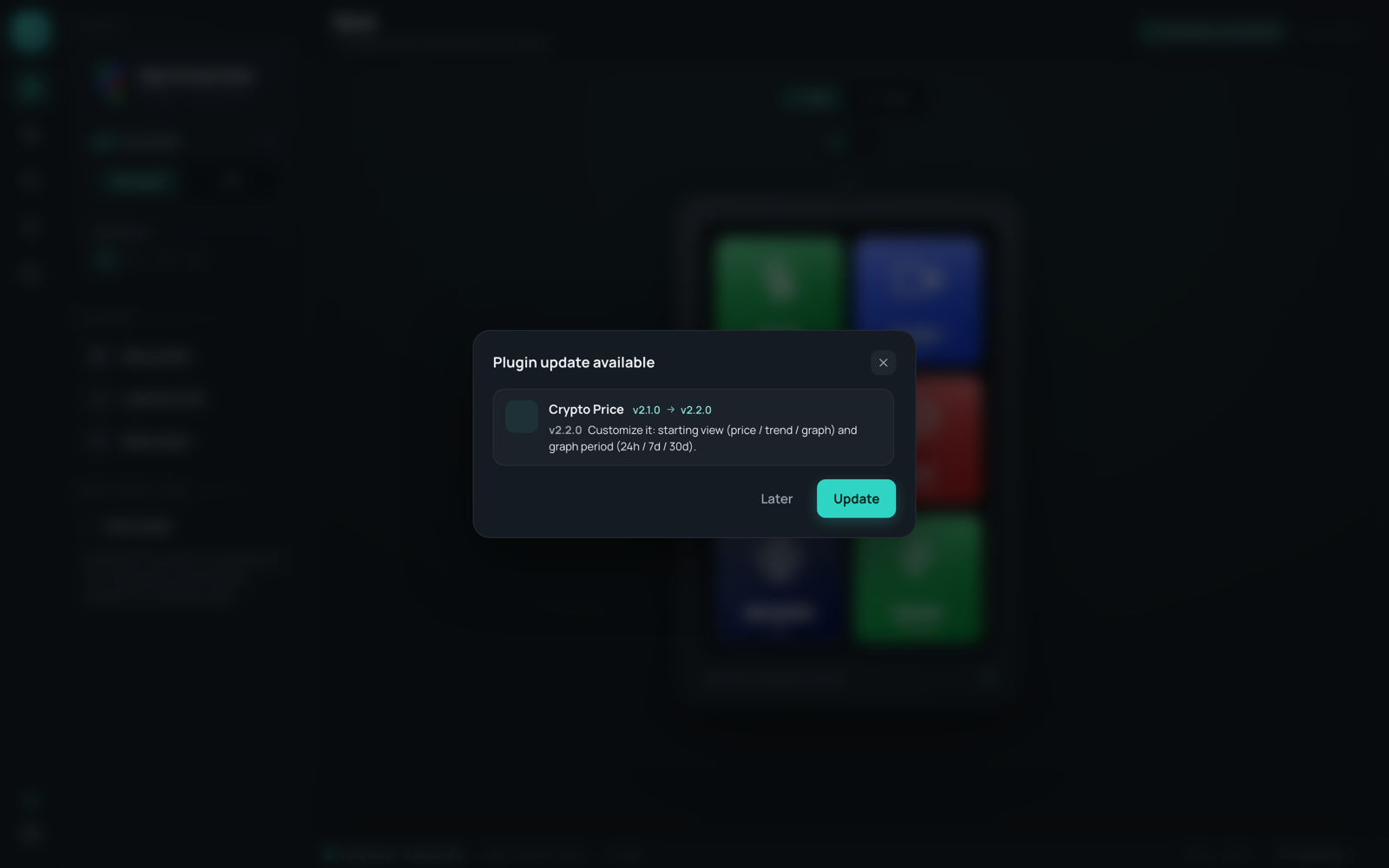
To write one, developer center — Plugins → Developer → Create drops a working folder on disk.
Firmware updates
Settings → Firmware compares the deck to the binary bundled with the app and can reboot into the ROM bootloader, flash over USB (~30 s), and come back. Recovery un-sticks a board left in download mode. You can still flash from Arduino; this is just the same image from the app.
Deck hardware (Rev E)
When a connected deck reports protocol 14+, Settings grows a Deck hardware card: IMU / ALS / haptic presence, lux, auto-dim, backlight, glow colour for the eight SK6812s, click-beep, and a SELFTEST that walks the panels and sensors. Older boards hide the card.